Moodle Transactional Email API (2026): Notify a Student That Their Assignment Was Graded with POST /emails
After a Moodle observer or scheduled task already records that a teacher graded an assignment, email the student the grade or assignment permalink they already have using Rovela POST /emails. No official plugin. Rovela does not grade work.

A grade-ready notice is not an expense-approved, data-export, or account-approved mail
When a Moodle event observer, a scheduled task, or a custom plugin has already recorded that a teacher graded an assignment — the grade is stored, a grade or assignment permalink the student already has is reachable, the grading event is finished — that process still has to tell the student: “Your assignment was graded,” plus the grade or assignment permalink they already have. That send is transactional email. It is not a course newsletter, not a weekly digest, and it is not a rewrite of the Odoo expense-approved, data export ready, or Discourse account-approved guides. Those tutorials already exist, and they describe an employee being told that an expense report was approved, a user being told an account export is ready to download, or a new forum member being told a moderator approved their account. This article is one event in your own Moodle workflow: a teacher already entered the grade, the grade record is visible to that student, and a permalink already exists. Rovela does not grade assignments, change Moodle gradebook rows, or talk to Moodle — this is your site’s own assignment-graded event, sent through POST /emails. The recipient is the student (the address you already store on that user). The call to action is “open your grade,” not “your expense was approved,” not “your export is ready,” and not “your forum account was approved.”
Point the permalink at the grade or assignment URL the student can already open with their own session — the assignment submission page that now shows the grade, or the grade report permalink your site already mints. Do not attach a complete marksheet export, a class roster, or a scanned exam booklet unless you have a deliberate reason and the file is small enough for your own product rules; the documented call to action is the permalink the student already has. Do not deep-link a teacher-only grading console the student cannot open. If the useful destination is simply the assignment page they already used to submit the work, and the grade is now visible there, that URL is the right destination. There is no client library to install, and there is no official Rovela Moodle plugin, local plugin, or marketplace extension. Use a PHP HTTP client (curl is enough) plus curl in a shell when you want to prove the JSON. The JSON body and headers are the product. The observer or scheduled task that already stored the grade should send the notice; Rovela does not change grades and does not invent a Moodle product.
This is also not a rewrite of nearby PHP or LMS-adjacent guides. The PHP transactional email, Laravel, Symfony, Yii, CakePHP, Slim, and CodeIgniter tutorials already exist, and each of those has its own caller. A Moodle “your assignment was graded” notice is a different event: the grade is already in the gradebook, and the student is being pointed at a permalink they already have. Rovela’s Email API is a single HTTPS call. The base URL is https://api.rovela.dev. You authenticate with Authorization: Bearer re_… (Authentication) and queue a message with POST /emails. The response is {"object":"email","id":"..."}. HTTP 200 means the message was accepted and queued, not that it has already arrived (Quick Start).
If you are still choosing between HTTP and SMTP, read Email API vs SMTP. Rovela’s SMTP is mailbox SMTP for mail apps (mx.rovela.dev:465, a device credential, send-as-self, 30 messages a minute from one client address). Programmatic volume from a Moodle observer or scheduled task belongs on POST /emails, which is also the distinction drawn in Email API vs SMTP relay. Related reading on the HTTP shape includes the transactional email API, the simple transactional email API, and sending transactional email from an app.
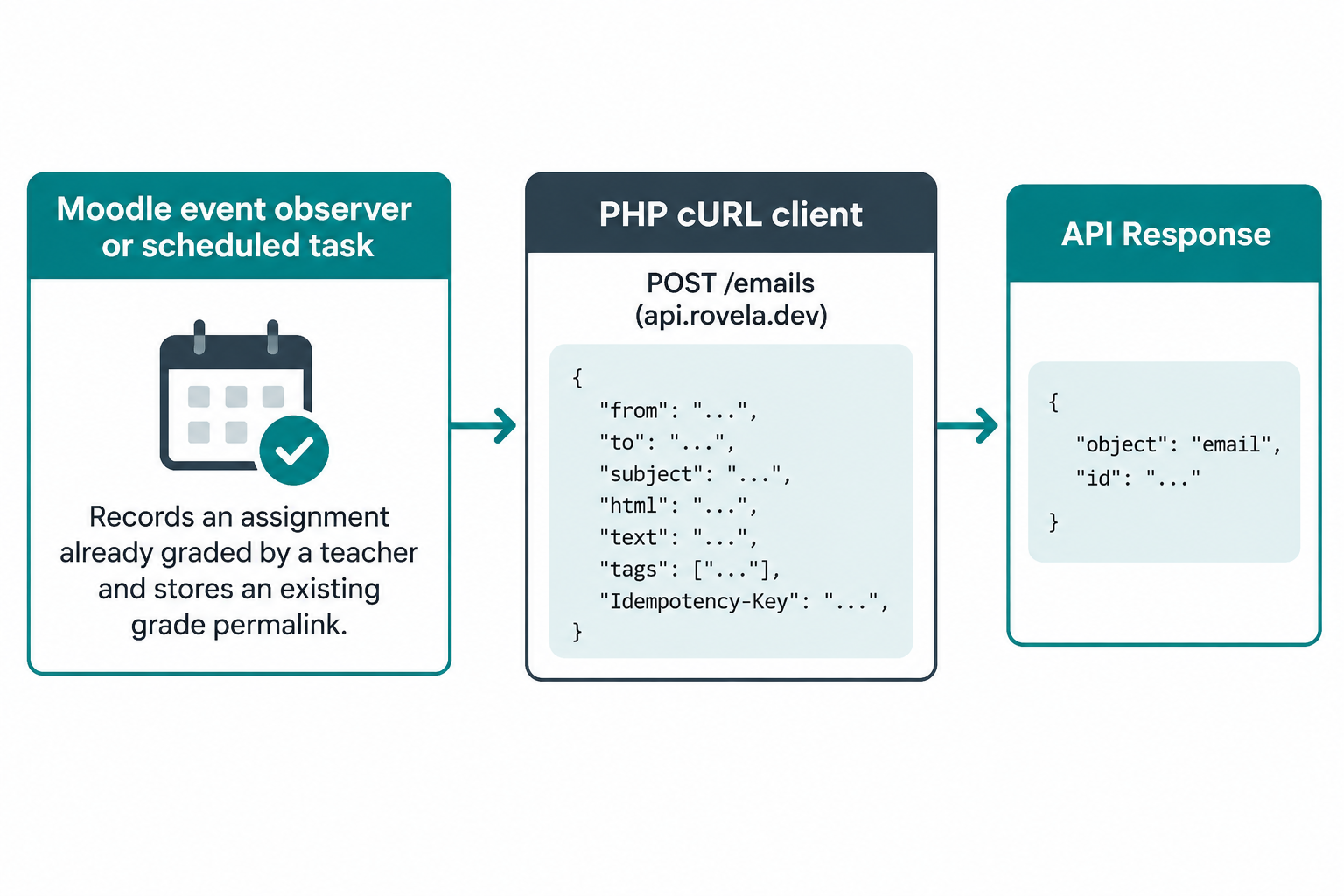
What you need before the first assignment-graded notice
The first-email guide and the Quick Start are the same five steps, whether the caller is curl or a PHP cURL helper inside a Moodle plugin:
- Create an account. You start on the free plan, which sends real mail. There is no separate sandbox, and no test key that behaves differently from production.
- Add and verify a sending domain (a subdomain such as
mail.example.comis a common choice). You cannot send from a domain you have not verified; an unverified or foreignfromis refused with a 400 that names the domain. The dashboard asks for four DNS records — SPF, DKIM, DMARC, and return-path. See the domain setup guide, the Domains API, and what domain email is. - Create an API key. A
sending_accesskey can send and nothing else — the right default for a production grade notifier. Afull_accesskey can also read messages and events, and manage domains, templates, and webhooks. The full key is shown once. - Send with
POST /emails. - Confirm delivery in the dashboard, with
GET /emails/:idorGET /emails/:id/events(those reads needfull_accessor a dashboard session), or with a webhook.
from is a string in the documented form "Course <course@yourdomain.com>". The address must sit on a verified sending domain. That is the same rule that makes domain email trustworthy: you prove you control the domain before you speak as it. How the display name and the address work is covered in the From name guide and the sending domains API overview. Related reading on records and subdomains includes how email authentication works, how to set up domain email, and sending subdomain setup.
At least one of html, text, or template is required. Send both html and text where you can — many clients preview the text part, which is often where the student first sees the grade permalink (HTML email API).
A Moodle observer or task that sends after the grade is already stored
Keep the Rovela key out of the browser, out of a public repository, and out of a container image. A leaked sending_access key can send mail as your domain. The Moodle observer, scheduled task, or plugin that already stored the grade should read ROVELA_API_KEY from its process environment and call Rovela only on the server (email API authentication). If a teacher grades the submission in Moodle’s own assignment UI, write your own graded-at record first (grade visible to the student, assignment or grade permalink already minted and reachable by that student), then enqueue the notice. Do not call the Email API from a front-end AMD module, and do not invent a Rovela Moodle plugin that writes grades — Rovela only sends the mail.
Store the event first: the assignment and user ids you already have, a short assignment title you already show on the course page, the student’s address, and the grade or assignment permalink they already have. The send is just the notice. The recipient is consistently the student whose work was just graded — not the whole course, not a parent mailing list, and not a shared faculty inbox unless you add that address deliberately. Key the Idempotency-Key to that assignment plus student (or to a specific grade event id you already store) so a retried task does not mail the same “your assignment was graded” notice twice. A later grade for a different assignment is a different event and should be a different key. If a later job releases a different grade item or exports a course archive, those are different guides, not this one.
<?php
// local/rovelagrades/classes/mailer.php
// Moodle observer / scheduled-task helper. Plain cURL. No official Rovela Moodle plugin.
// Send only after a teacher has already stored the grade.

final class local_rovelagrades_mailer
{
    public static function send_email(
        string $to,
        string $subject,
        string $html,
        string $text,
        string $idempotency_key,
        string $from_address,
        array $tags
    ): string {
        $payload = json_encode([
            'from' => 'Course <' . $from_address . '>',
            'to' => $to,
            'subject' => $subject,
            'html' => $html,
            'text' => $text,
            'reply_to' => $from_address,
            'tags' => $tags,
        ], JSON_UNESCAPED_SLASHES | JSON_UNESCAPED_UNICODE);

        $ch = curl_init('https://api.rovela.dev/emails');
        curl_setopt_array($ch, [
            CURLOPT_POST => true,
            CURLOPT_HTTPHEADER => [
                'Authorization: Bearer ' . getenv('ROVELA_API_KEY'),
                'Content-Type: application/json',
                'Idempotency-Key: ' . $idempotency_key,
            ],
            CURLOPT_POSTFIELDS => $payload,
            CURLOPT_RETURNTRANSFER => true,
        ]);
        $raw = curl_exec($ch);
        $code = curl_getinfo($ch, CURLINFO_HTTP_CODE);
        curl_close($ch);
        if ($raw === false || $code < 200 || $code >= 300) {
            throw new RuntimeException('Rovela send failed: HTTP ' . $code);
        }
        $decoded = json_decode($raw, true);
        return is_array($decoded) && isset($decoded['id']) ? $decoded['id'] : '';
    }

    public static function notify_assignment_graded(
        string $student_email,
        string $assignment_title,
        string $grade_permalink,
        string $assignment_id,
        string $user_id
    ): string {
        $title = htmlspecialchars($assignment_title, ENT_QUOTES | ENT_SUBSTITUTE, 'UTF-8');
        $href = htmlspecialchars($grade_permalink, ENT_QUOTES | ENT_SUBSTITUTE, 'UTF-8');
        return self::send_email(
            $student_email,
            'Your assignment was graded',
            '<p>Your assignment “' . $title . '” was graded. Open the grade page you already have.</p><p><a href="' . $href . '">Open your grade</a></p>',
            "Your assignment \"{$assignment_title}\" was graded. Open the grade page you already have.\n\nOpen your grade: {$grade_permalink}",
            'assignment-graded-' . $assignment_id . '-' . $user_id,
            'course@yourdomain.com',
            ['type' => 'assignment_graded']
        );
    }
}
Call local_rovelagrades_mailer::notify_assignment_graded from the observer or scheduled task that already wrote graded_at (or your own “grade visible to the student” flag) — after the grade permalink exists and remains reachable by that student, not before. A typical pattern is an observer on your own assign_submission_graded (or equivalent) event after the gradebook row is persisted, or a scheduled task that drains an assignment_graded queue your plugin already created. Keep the HTTP call out of the request path that merely opens the grading form; the student should be mailed when the teacher has actually stored the grade, not when the teacher first clicks into the grader. The email is a status notice, not a place to dump a full rubric grid, hidden teacher comments that are not yet released, or a class ranking the student can already review on the grade page once it is visible. If a later decision updates the same grade again, treat that as a different event with a different idempotency key if you intend to send a second notice — do not silently reuse the first graded key unless you truly want the original response back.
The same JSON can be sent with curl, which is useful in a staging shell while you confirm the verified from and the permalink:
curl -X POST https://api.rovela.dev/emails \
  -H "Authorization: Bearer $ROVELA_API_KEY" \
  -H "Content-Type: application/json" \
  -H "Idempotency-Key: assignment-graded-asn_01M4K8-user_01S2" \
  -d '{
    "from": "Course <course@yourdomain.com>",
    "to": "student@example.com",
    "subject": "Your assignment was graded",
    "html": "<p>Your assignment “Lab 4: Coastal maps” was graded. Open the grade page you already have.</p><p><a href=\"https://learn.example.com/mod/assign/view.php?id=4821\">Open your grade</a></p>",
    "text": "Your assignment \"Lab 4: Coastal maps\" was graded. Open the grade page you already have.\\n\\nOpen your grade: https://learn.example.com/mod/assign/view.php?id=4821",
    "reply_to": "course@yourdomain.com",
    "tags": {"type": "assignment_graded"}
  }'
reply_to is documented and optional; use it when replies should reach a course or teaching inbox rather than the sending address (reply-to). tags may be an object or an array of arbitrary labels — they are yours to choose, and they help you filter later in the dashboard or in webhooks (email API tags). headers and topic_id are also documented fields; this tutorial does not treat topic_id as a product tour. Attachments, if you ever add a short grade card, use { filename, content (base64), content_type }. Do not attach student identity documents, a full class gradebook, or hidden feedback the teacher has not released. The permalink is the call to action (email attachments).
If you ever need to notify many independently graded submissions in one go (a queue catch-up after a scheduled task comes back online, not the usual single-student path), POST /emails/batch accepts up to 100 messages, each with the same schema. Two fields are rejected rather than ignored: template and topic_id. Send those through POST /emails. See the batch example and the batch transactional email guide. Each item should still carry its own business key if you send them as individual POST /emails calls; if you use the batch endpoint, keep the rest of the payload identical to a single send, without template or topic_id.
template is documented as { id, variables } and is mutually exclusive with html and text. This tutorial sends both html and text so the student can open the grade permalink even in a text-only client. If you later switch a stable notice to a stored template, drop html and text and follow the Templates API, the templates guide, and the email templates API guide.
Idempotency, recipients, and what a 200 actually means
Moodle observers and scheduled tasks retry, and a “the assignment was graded, notify the student” path can run more than once for the same record. Send an Idempotency-Key header (up to 256 characters). A retry of the same request within 24 hours returns the original response instead of sending again (idempotency). Key it to the assignment id plus the student user id (or to a specific grade event id you already store), not to the clock and not to the student’s email alone. A later grade on a different assignment is a second notice and a second key.
A message may address at most 50 recipients across to, cc, and bcc combined. That is the transport’s limit, not a plan limit, and it is checked before the request is accepted. Quota is charged per recipient, not per message — cc and bcc count the same as to (cc and bcc). An assignment-graded notice addresses the student whose work was just graded. If a second contact also has to be told, add that address deliberately and accept that it counts as a second recipient. Do not cc the entire course or every teacher by default.
HTTP 200 from POST /emails means the message was accepted and queued. It is not a delivery receipt. The JSON is {"object":"email","id":"..."}. Persist that id next to the grade event if you want to look the message up later from a dashboard session. Do not block the Moodle observer or scheduled task until a mailbox provider confirms delivery.
scheduled_at is a documented ISO 8601 future timestamp if you ever need to hold a notice (scheduled email). For a grade that is already stored and visible, send immediately after the graded record is written. If you did schedule a message and the student should not receive it, POST /emails/:id/cancel cancels an unsent message. Reading, cancelling, and any rescheduling need full_access or a dashboard session. This article does not invent a reschedule request body.
Errors you should handle in the Moodle observer
Documented send errors use an envelope of { statusCode, name, message }:
- 400 — a missing required field, a
fromdomain that does not belong to your organization, atemplatethat does not exist, or more than 50 recipients on one message. Fix the payload; retrying the same body will fail the same way. - 401 — a missing, malformed, or revoked Bearer key. Check the process environment, not the gradebook row.
- 429 — you are being rate limited. Back off and retry with the same
Idempotency-Keyso a later attempt cannot send a second notice for the same grade (rate limits, retries).
Treat unknown 5xx responses as retryable with the same key. Log name and message next to the assignment and user ids; do not log the Bearer key. A practical walk-through is the email API error handling guide. Related operational reading includes email API logs and email API integration.
Delivery is asynchronous — do not poll from the observer
A 200 from POST /emails means accepted for delivery, not delivered. Reading GET /emails/:id or GET /emails/:id/events needs a full_access key or a dashboard session; a sending_access key cannot do it, and you should not add a polling loop inside the Moodle observer or scheduled task. Subscribe to a webhook instead, and verify the signature header x-resend-signature as documented in webhook security and signature verification. Event names include accepted, delivered, opened, clicked, bounced, or failed. For a single message you can also use the email delivery status API or the dashboard from a support session. Related reading includes the email webhooks API and transactional email webhooks.

What not to do in this assignment-graded notice
- Do not put the Rovela key in a browser client, a public repository, a Moodle theme, or a container image.
- Do not invent a Rovela Moodle plugin that writes grades. Your observer already recorded the grade; Rovela delivers the mail. There is no official client library. Rovela is not changing the gradebook.
- Do not send this as a “your expense was approved,” “your data export is ready,” or “your forum account was approved” template borrowed from another tutorial. The permalink is a grade or assignment page the student already has, and the recipient is that student.
- Do not include student identity numbers, a full class marksheet, or unreleased teacher comments in the email body. The notice carries a short assignment title and the permalink.
- Do not send from mailbox SMTP for this. SMTP is for mail apps and mailboxes. A Moodle observer or scheduled task should use the HTTP API. Inbound mail into a hosted mailbox is a different path, described in the webmail manual; this guide is an outbound assignment-graded notice. If you are migrating an older mailer, see migrate SMTP to the Email API and SMTP ports 25, 465, and 587.
- Do not poll
GET /emails/:idwith asending_accesskey, and do not invent a reschedule body if you later cancel an unsent message.
A compact assignment-graded checklist
- Verify the sending domain and create a
sending_accesskey (Quick Start). - Put
ROVELA_API_KEYandROVELA_FROMin the Moodle observer or scheduled task’s process environment, not in a theme or a front-end script. - Record the graded assignment first: the student’s address, a short assignment title, and the grade or assignment permalink the student already has.
- Call
POST /emailswith a PHP HTTP client (or curl), bothhtmlandtext, areply_toif you want replies in a course inbox, and anIdempotency-Keyscoped to that assignment and student. - Treat HTTP 200 as accepted, not delivered. Persist the returned message id if you need it later.
- Confirm delivery with a signed webhook or from the dashboard.
- If you are comparing providers, the existing pages are Rovela vs Mailgun, vs Amazon SES, vs Postmark, vs SendGrid, vs Resend, and vs Brevo. For the HTTP shape itself, see the transactional email API, the curl sending guide, and the HTTP email API overview. For other notification patterns, see the email notification API guide.