Collaboration Invite Email API (2026): Invite Someone to Edit a Shared Project with POST /emails
After your app already creates a project-edit invite and mints an open-project URL, send that collaboration invite with Rovela POST /emails. This is not a workspace teammate-seat invite. Rovela does not grant edit access.
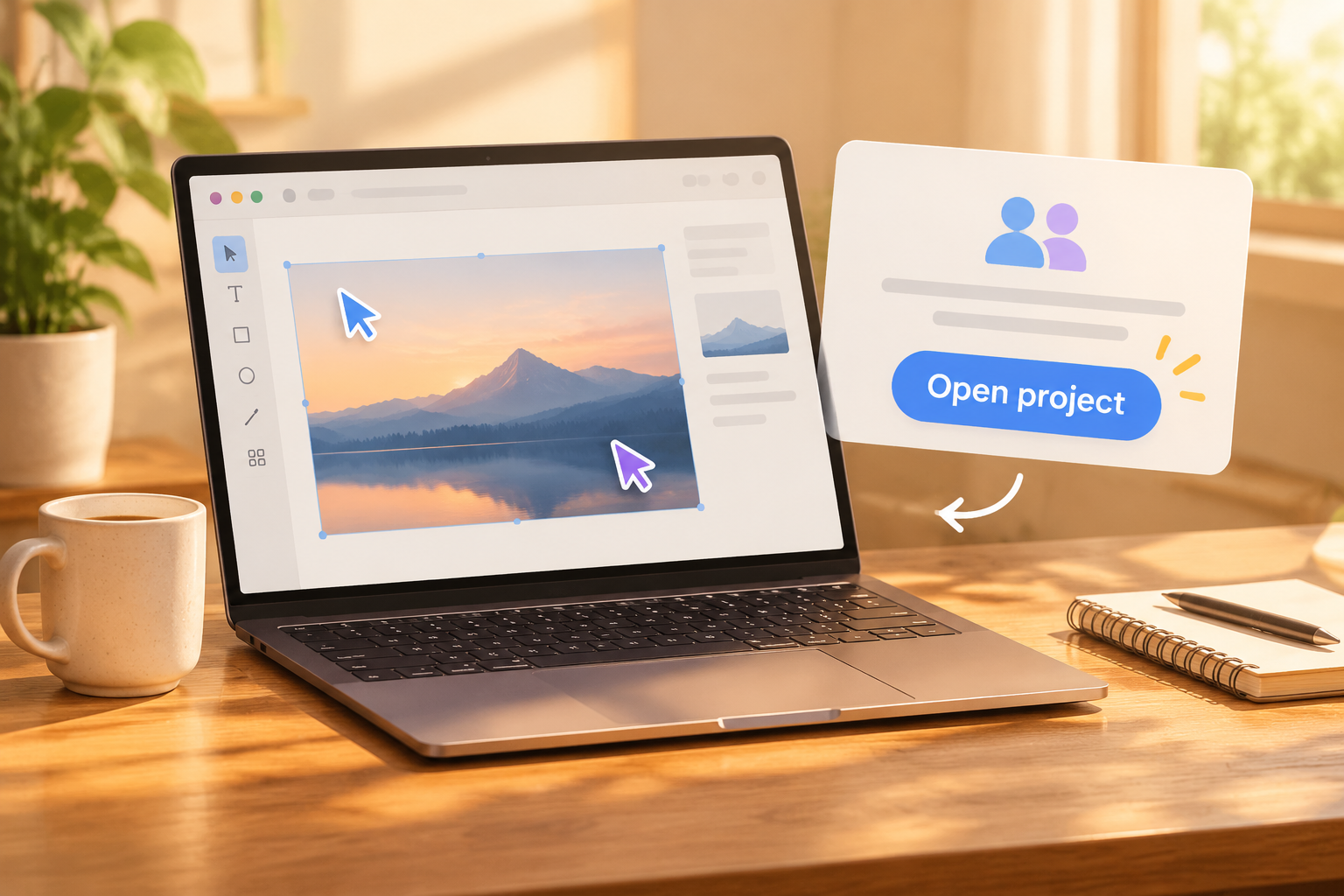
A project collaboration invite is not a workspace teammate-seat invite, an invite-accepted notice, or a comment mention
When an AI-built app, a no-code canvas, or a multiplayer editor already created a project-edit invite — a row that names the project, the inviter, a role such as “can edit,” and an open-project URL you minted — that server still has to tell the invited person: “You’ve been invited to edit this project,” plus the URL you already have. That send is transactional email. It is not a company newsletter, and it is not a rewrite of the generic team invite email links primer, a Bolt workspace teammate invite, the invite accepted notice, or a comment mention. Those tutorials already exist. A workspace teammate invite grants membership in a workspace (seats, billing, a team directory). This article is narrower: access to one shared project or document, the way you invite someone to edit a file, a board, or a generated site. Rovela does not grant edit access, open the canvas, or talk to your app — this is your own collaboration-invite event, sent through POST /emails. The recipient is the person invited to edit. The call to action is “open the project,” not “join this workspace,” and not “someone mentioned you.”
This guide does not invent a platform plugin. There is no official SDK to install. Keep the key on the server that wrote the invite, not in the editor’s client. Send from a domain you verified, with DKIM and an Idempotency-Key. After the person accepts, you may send the inviter an invite accepted message as a second, separately idempotent event.
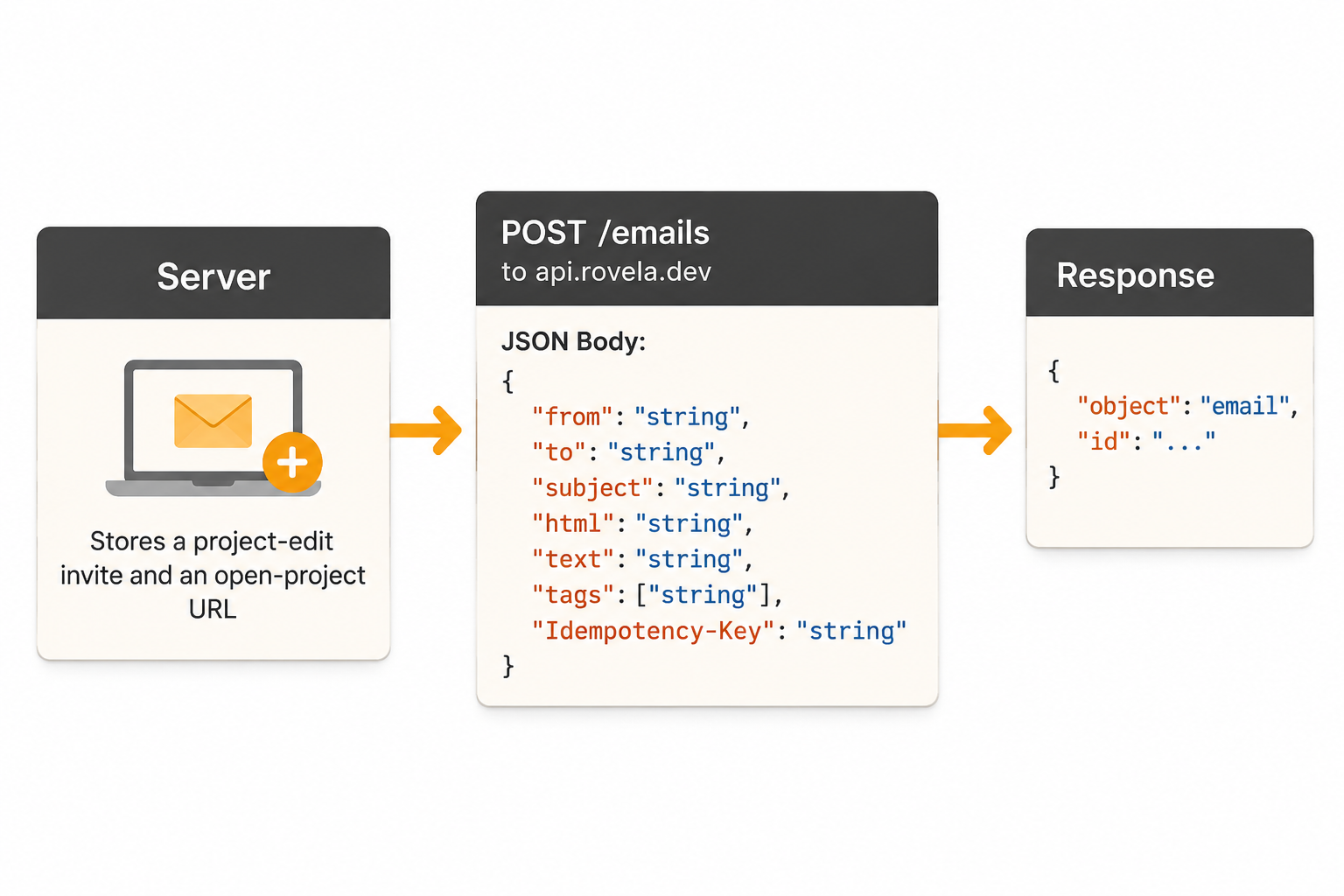
What you need before the first project collaboration invite
The first-email guide and the Quick Start are the same five steps, whether you call curl or a server-side fetch from the server that already stored the project-edit invite:
- Create an account. The free plan sends real mail. There is no separate sandbox, and no test key that behaves differently from production.
- Add and verify a sending domain (often a subdomain such as
mail.example.com). An unverified or foreignfromis refused with a 400 that names the domain. The dashboard asks for four DNS records — SPF, DKIM, DMARC, and return-path. See the domain setup guide, the Domains API, and what an email domain is. - Create an API key. A
sending_accesskey can send and nothing else — the right default for a production project collaboration invite sender. Afull_accesskey can also read messages and events, and manage domains, templates, and webhooks. The full key is shown once. Keys look likere_…and go out as a bearer token (authentication, email API authentication). - Send with
POST /emails. - Confirm delivery in the dashboard, with
GET /emails/:idorGET /emails/:id/events(those reads needfull_accessor a dashboard session), or with a webhook.
from is a string in the documented form "Acme <invites@mail.example.com>". The address must sit on a verified sending domain. You prove you control the domain — that is what makes domain email trustworthy — before you speak as it. See the From name guide, the sending domains API, how email authentication works, how to set up domain email, and sending subdomain setup.
At least one of html, text, or template is required. template is a documented { id, variables } object and is mutually exclusive with html and text. Send both html and text where you can (HTML email API). Reusable copy can move to a template later; follow the templates guide. Examples here keep the copy inline.
Programmatic volume belongs on the HTTP email API, not on mailbox SMTP. Rovela SMTP is mailbox mail for Outlook, Apple Mail, or a phone: host mx.rovela.dev, port 465 with SSL/TLS, the mailbox’s full address, and a device credential (the same one that device uses for IMAP). A mailbox can send only as itself. For this project collaboration invite, start with email API vs SMTP.
A server path that sends only after the project-edit invite and open URL already exist
The “Share” or “Invite to edit” control can live in an AI-built web app, a FlutterFlow mobile app, or a Bubble workflow. The mail send belongs on the server that already inserted the invite. Authorize the inviter as someone who can share that project, then write the invite, then send.
Do the product work first. Insert the invite (project id, email, role such as editor or commenter, hashed token, expiry), build an open URL such as https://app.example.com/projects/proj_44?invite=…, and only then call the Send Email API. If the insert fails, do not send.
// Server that stored the project-edit invite — never the editor client.
const openUrl = `https://app.example.com/projects/${projectId}?invite=${plainToken}`;

const res = await fetch("https://api.rovela.dev/emails", {
  method: "POST",
  headers: {
    Authorization: `Bearer ${process.env.ROVELA_API_KEY}`,
    "Content-Type": "application/json",
    "Idempotency-Key": `collab-invite-${projectId}-${inviteId}-v1`,
  },
  body: JSON.stringify({
    from: "Acme <invites@mail.example.com>",
    to: invite.email,
    subject: `${inviterName} invited you to edit “${projectTitle}”`,
    html:
      `<p>${inviterName} invited you to ${roleLabel} <b>${projectTitle}</b>.</p>` +
      `<p><a href="${openUrl}">Open project</a></p>` +
      `<p>This invite expires in 14 days.</p>`,
    text:
      `${inviterName} invited you to ${roleLabel} ${projectTitle}.\n` +
      `Open project: ${openUrl}\nThis invite expires in 14 days.`,
    tags: { type: "collaboration-invite" },
  }),
});

if (!res.ok) {
  const err = await res.json().catch(() => ({}));
  throw new Error(`rovela ${res.status}: ${err.message || res.statusText}`);
}

const { id } = await res.json();
Use a sending_access key. Name the inviter and the project in both html and text. Your open-project route verifies the token and grants that project’s role — not a workspace-wide seat. Rovela does not change permissions.
Idempotency, recipients, and what a 200 actually means
Retries are normal. A server action, edge function, workflow, or queued job can time out after Rovela has already accepted the message. Send the documented Idempotency-Key header so a retry does not create a second project collaboration invite. A stable key such as collab-invite-proj_44-inv_12-v1 is unique to this event, this recipient, and this token or invite version, and it stays the same when the HTTP call is repeated.
to accepts a string or an array. cc and bcc count toward billing and toward the documented cap of 50 recipients on one message. For a project collaboration invite, use a single to: the person invited to edit the project. If you need an owner copy, send a second, separately idempotent message instead of BCC-ing a shared inbox.
A 200 from POST /emails means accepted for delivery, not arrived. The body looks like {"object": "email", "id": "9f1c2e40-..."}. Delivery is asynchronous. Read state with GET /emails/:id or GET /emails/:id/events (those need full_access or a dashboard session). In production, subscribe to a webhook for email.sent, email.delivered, email.bounced, and related events instead of polling from the request that minted the project collaboration invite.
If the address is on the suppression list, the send can still return an id, but the message is not delivered and its status becomes suppressed. Check Suppressions in the dashboard before assuming the API failed. Rate limits are per key; a 429 means retry with backoff. Each message in a POST /emails/batch request counts individually.
Optional documented fields include reply_to, scheduled_at (an ISO 8601 timestamp in the future), tags, headers, and attachments as { filename, content (base64), content_type }. This project collaboration invite does not need an attachment. To queue a later follow-up, use scheduled_at — not a sleep in the request path. A batch is appropriate only when you truly have many different messages, up to 100 per request.
Errors you should handle in the project-invite server path
Documented errors share one shape: statusCode, name, and message. Handle them once in the project-invite server path.
- 400 — a missing required field, a
fromdomain that is not in your organization or is still unverified, a template that does not exist, a base64 attachment that does not decode, or more than 50 recipients on one message. Readmessage; it often names the domain or the missing field. Do not retry a 400 in a tight loop. - 401 — missing or invalid credential, or a missing
Bearerprefix. A revoked key looks the same from the client’s point of view. - 403 — a valid
sending_accesskey used on a management or read endpoint such asGET /emails/:idorGET /domains. The message says which permission is required. Keep the send path onsending_access; usefull_accessor the dashboard for status reads. - 429 — the per-key rate limit. Retry with backoff. Do not fan out a burst of project collaboration invite sends from an unqueued loop.
A leaked sending_access key can send mail as your domain. Keep ROVELA_API_KEY in the server or edge-function environment, never in the browser, a mobile client, a public page, or a chat transcript (email API authentication). There is no official client SDK to install; a standard HTTPS call is enough.
Delivery is asynchronous — do not poll from the project-invite server path
After project collaboration invite is accepted, delivery continues in the background. The project-invite server path should store the returned message id next to your own event record and return to the user. Watching the message from that same request with a tight GET /emails/:id loop will slow the sign-up, invite, or form path and still needs full_access.
For production, configure a webhook and follow the webhook overview. Typical events include email.sent, email.delivered, email.opened, email.clicked, and email.bounced (event reference). Use bounces to keep your own list clean; do not invent a /logs API — the documented reads are GET /emails/:id, GET /emails/:id/events, the dashboard Emails view, and webhooks.
If a project collaboration invite landed in spam, start with DNS rather than the HTTP call: confirm the DKIM record is published at the selector the dashboard gave you, that you have exactly one SPF record, and that DMARC is not p=reject on a brand-new domain with no sending history. Reputation takes weeks, not minutes (how email authentication works).
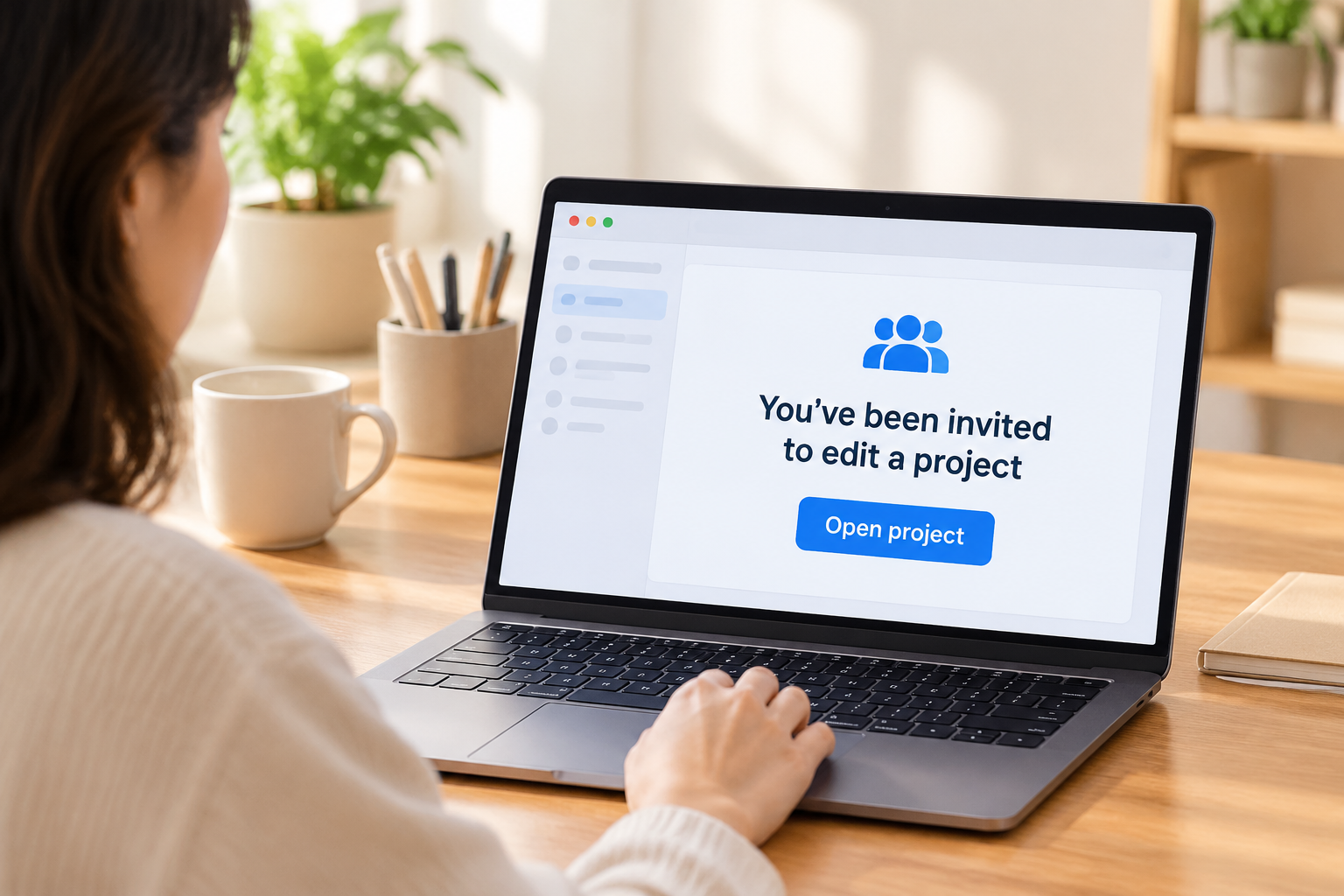
What not to do in this project collaboration invite
Do not put the Rovela key in the collaborative editor’s client. Do not send these invites over mailbox SMTP. Use the HTTP API.
Do not treat this as a workspace teammate invite or BCC the rest of the project on the same message. Do not invent a sandbox key. Do not poll GET /emails/:id from the share request. A resend after you rotate the token needs a new key version.
Rovela will not open the canvas or attach an editor role. Your accept/open route does that after a successful click.
A compact collaboration-invite checklist
- Verify a sending domain and create a
sending_accesskey (Quick Start). - Authorize the inviter, write the project-edit invite, and mint the open URL first.
- Call
POST /emailsfrom the server withIdempotency-Key,html, andtext. - Keep the key out of the editor client.
- Use webhooks for bounces; a 200 only means accepted.
- Grant the project role only after the token checks out.