How to Move Company Email from Aliyun, Tencent Exmail or NetEase to Rovela
A step-by-step move: DNS records, when to switch the MX, getting IMAP access at each provider, importing history for one mailbox or hundreds, and setting up mail apps.
This guide moves company email from Aliyun Qiye Mail, Tencent Exmail or NetEase Qiye Mail to Rovela, history included. Done in order it usually fits in an afternoon, plus however long your DNS takes to update.
Two things to know first
Mail follows the MX record. Where mail for you@yourcompany.com goes is decided only by the domain's MX record. Until the MX points at Rovela, new mail keeps arriving at the old provider. After it does, new mail arrives at Rovela. Mail already sitting at the old provider does not move by itself; that is what the import is for.
Import copies, it does not sync. Rovela logs in to the old mailbox over IMAP and copies the chosen folders. Importing the same mailbox twice gives you every message twice. So import once, and do it after the MX switch, when the old mailbox holds everything.
Step 1: Add the domain in Rovela
In the dashboard, open Domains, add yourcompany.com and turn on receiving. Rovela lists the records to publish:
| Type | Host | Value | Purpose |
|---|---|---|---|
| MX | @ | 10 mx.rovela.dev | Receiving |
| TXT | @ | v=spf1 include:_spf.rovela.dev ~all | SPF |
| TXT | rovela<id>._domainkey | v=DKIM1; k=rsa; p=… | DKIM signing |
| TXT | _dmarc | v=DMARC1; p=none; | DMARC |
Hold off on the MX for now. SPF, DKIM and DMARC can go in straight away; they do not change where mail is delivered. A domain can have only one SPF record, so if the old provider already has one, add include:_spf.rovela.dev to it rather than creating a second.
If the domain's DNS is on Cloudflare, Aliyun DNS or DNSPod, connect the provider on the domain page and Rovela writes the records. A record that already exists with a different value is left alone and flagged, not overwritten.
The full walkthrough is in the domain setup guide.
Step 2: Create the mailboxes
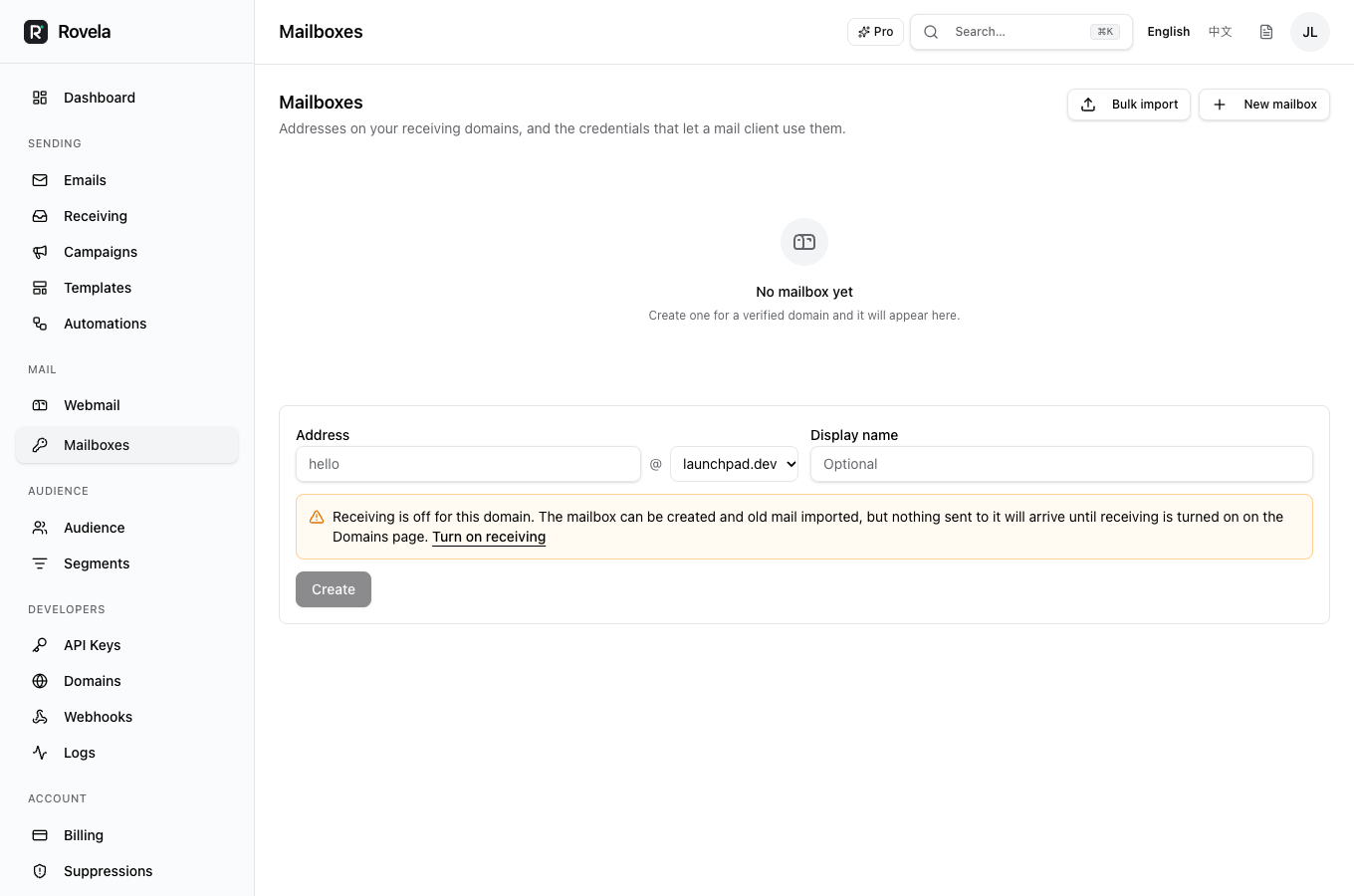
Open Mailboxes and create one for each person. This works before the MX is switched; the form will say the domain is not receiving mail yet, which is expected.
After creation, each mailbox shows a red banner reminding you that live inbound mail is off until the MX switches. You can still run the import at any time.
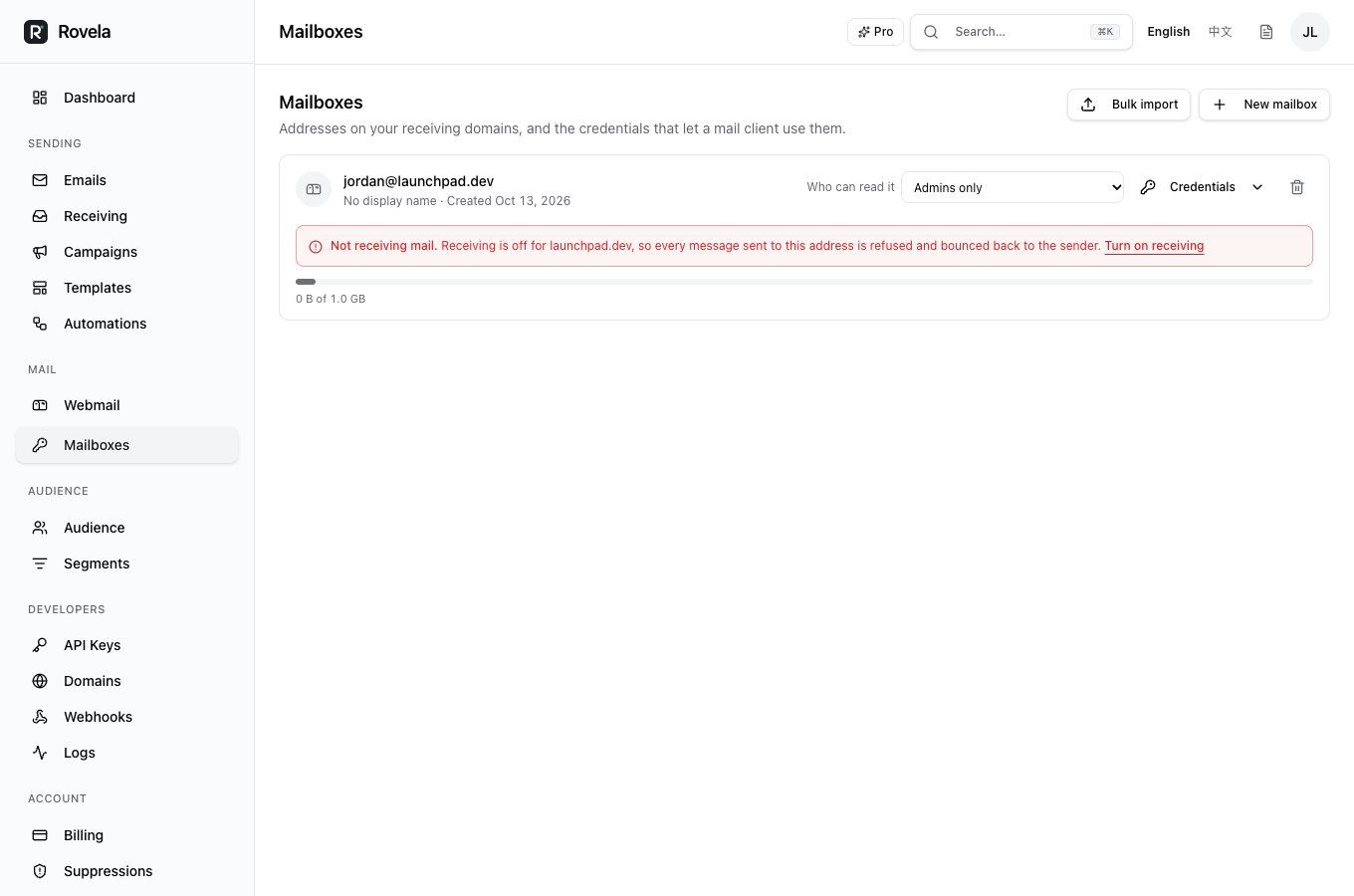
Free includes 5 mailboxes and 1 GiB of storage; Pro includes 100 mailboxes and 50 GiB. For a larger team, check the limits first. The import preview also shows how much space the destination mailbox has used and has left.
Step 3: Get IMAP ready at the old provider
This step differs by provider, and it is where moves most often get stuck.
Aliyun Qiye Mail
- IMAP server
imap.qiye.aliyun.com, port 993. - Uses the account's login password.
- By default only the last 30 days of mail are available over IMAP. Left that way, the import reports success and brings over one month. Enable full history export in the qiye.aliyun.com admin console first.
Tencent Exmail
- IMAP server
imap.exmail.qq.com, port 993. - The login password does not work. Turn on IMAP at exmail.qq.com and generate a client-specific password.
NetEase Qiye Mail
- IMAP server
imap.qiye.163.com, port 993. - Uses an authorization code from the admin console, not the login password.
For a whole team, the usual route is for an admin to bulk-reset passwords or generate authorization codes in the old provider's console, then collect them as a list of addresses and passwords for step 5.
Step 4: Switch the MX
Change the domain's MX to 10 mx.rovela.dev and remove the old provider's MX records.
New mail then starts arriving at Rovela. Until resolver caches expire, some will still reach the old provider; how long depends on the old record's TTL, typically minutes to a few hours. Wait until nothing new is landing in the old mailboxes before the next step.
Step 5: Import the history
One mailbox: open mail.rovela.dev, go to the destination mailbox, and use the import button in the folder sidebar.
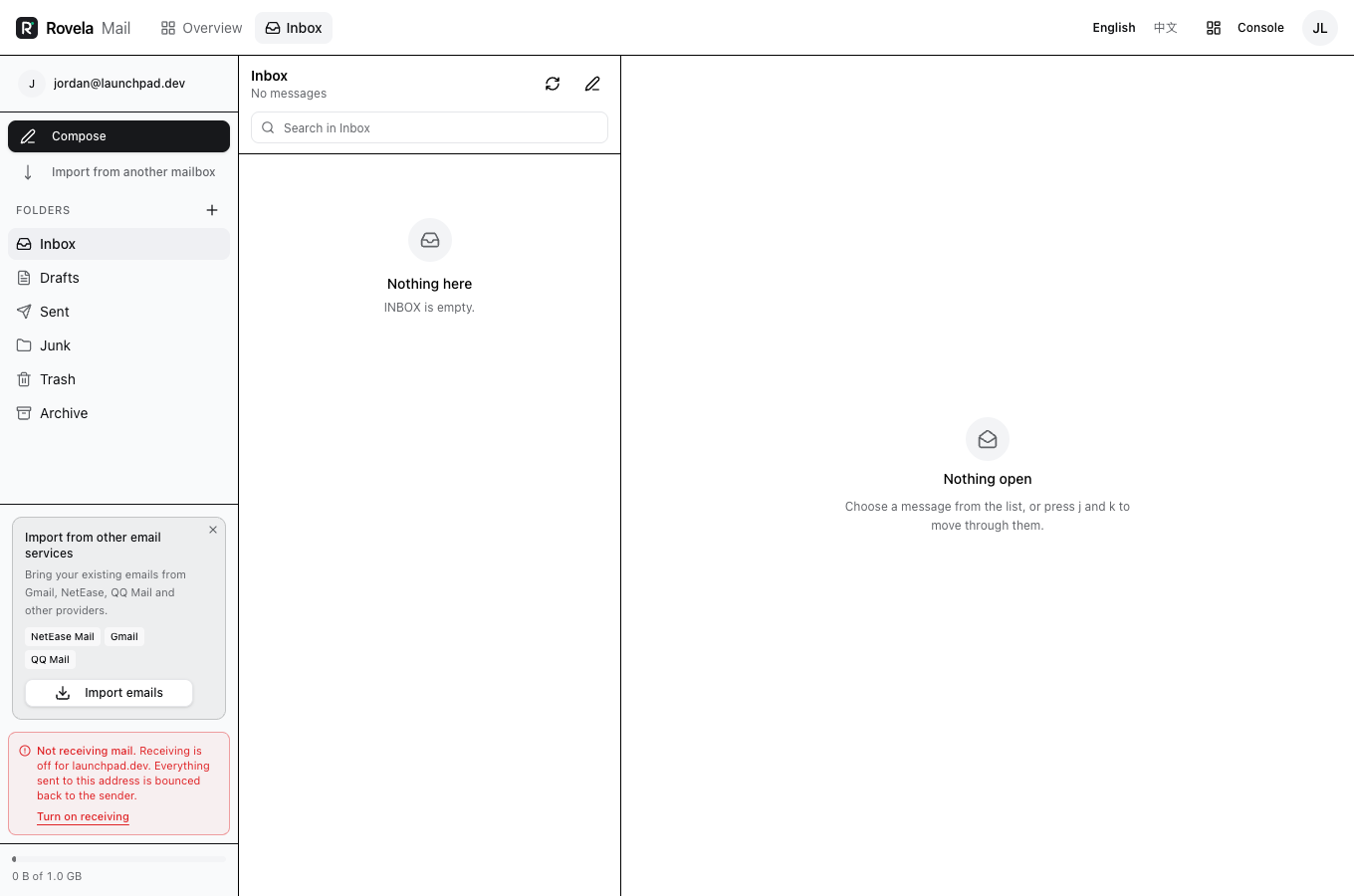
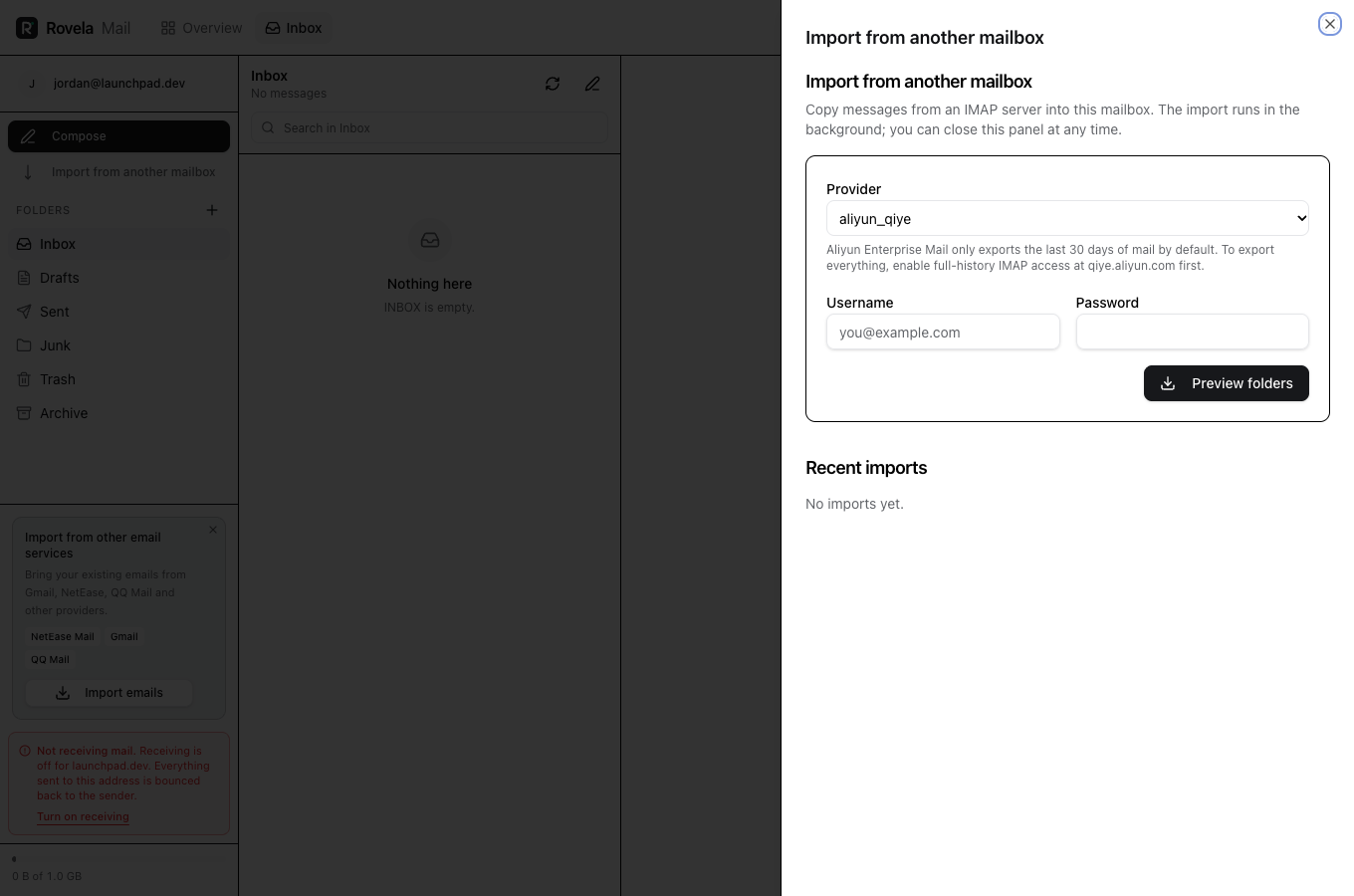
- Enter the old address. Rovela identifies the provider from the domain's MX and fills in the server. Once the MX points at Rovela it can no longer tell, so pick the provider by hand; the server settings are the same.
- Enter the password or authorization code from step 3 and click Preview folders.
- The preview lists each folder at the old provider with its message count. Untick what you do not want, and rename where a folder should land.
- Pick a folder mode. Merge puts Inbox, Sent and the rest into the matching folders, which suits a full move. Prefix puts everything under
Imported/, apart from existing mail. - Start. The job runs in the background, so you can close the page, and progress updates live.
Many mailboxes: Dashboard → Mailboxes → Bulk import. Upload a CSV with one mailbox per row:
source_address,password,dest_address
zhang.san@yourcompany.com,NewPassword1,
li.si@yourcompany.com,NewPassword2,
An empty dest_address means the same address on Rovela. After upload, Rovela tries every login first without moving any mail, then lists which rows passed, which have the wrong password and which have IMAP turned off. Fix a password in the table, recheck that row, and start the import once everything is sorted. The details are in the 0.5.0 release notes.
Step 6: Set up mail apps
The webmail works as soon as you sign in. For Outlook, Apple Mail, Thunderbird or a phone, create a password for the mailbox on the dashboard's Mailboxes page. Use one per device; each is shown once. Server settings:
- Incoming IMAP:
mx.rovela.dev, port 993, SSL/TLS - Outgoing SMTP:
mx.rovela.dev, port 465, SSL/TLS
Per-app steps are in mail client setup.
Questions
What if the import is interrupted? When the source server drops the connection, Rovela reconnects and carries on, up to 3 times at any one point. Mail is fetched 20 messages at a time, so a drop costs little. A batch that still fails after retrying is counted as skipped, and the finished job shows how many messages were skipped.
Can I import first and switch the MX later? Yes. Mailboxes can be created and imported into before the switch. The cost is that mail arriving at the old provider between the import and the switch is not brought over, and importing the whole mailbox again creates duplicates. It is a fair choice for a very large mailbox you want to start early, as long as you accept that gap or handle those days separately.
Can I import from Outlook, Hotmail or Microsoft 365? Not at the moment. Microsoft has turned off password login over IMAP for those accounts.
Are dates and read status kept? Yes. Each message keeps its original received time, and flags such as read and starred come across too.
When can I cancel the old provider? After every import job has finished and a spot check of a few mailboxes shows folder counts that match.