Rovela 0.5.0: Batch Mailbox Import via CSV Upload
Rovela 0.5.0 lets administrators import dozens or hundreds of mailboxes at once from a CSV file, with a pre-flight credential check, per-row status, and an inline fix-and-recheck workflow before any data moves.
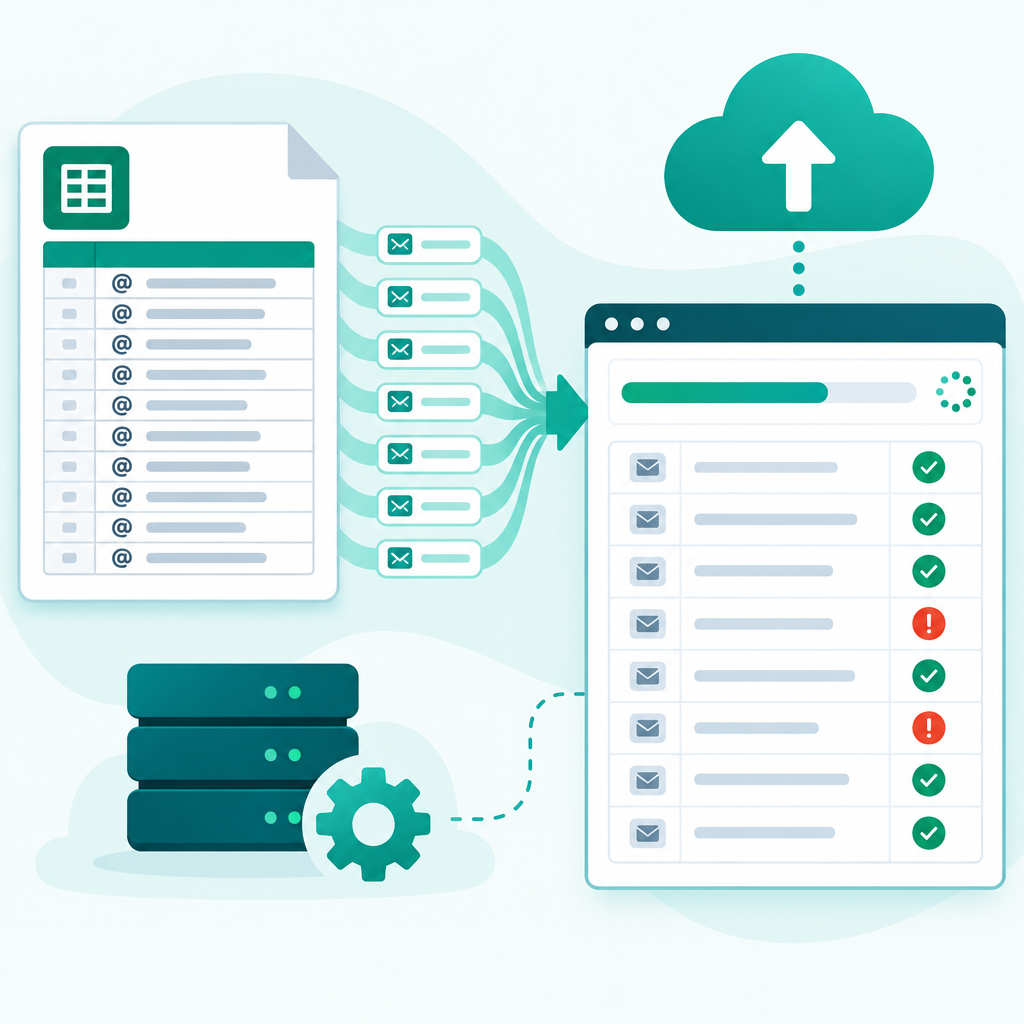
What shipped in 0.5.0
Rovela 0.5.0 solves the problem of migrating a large number of mailboxes from providers that do not have admin-level export APIs. The answer is a CSV-based batch import with a mandatory pre-flight check.
The problem it solves
When migrating from a provider like Alibaba Enterprise Mail, there is no admin API to pull all mailboxes at once. Each mailbox has its own IMAP credentials, and the only way to move mail is to log in to each one individually. At ten mailboxes that is manageable; at a hundred it is a significant manual operation.
Batch import handles this case: the admin resets passwords in bulk on the source side, exports the address-and-password list as a CSV, and uploads it to Rovela.
Pre-flight credential check
Uploading the CSV does not start the import immediately. First, Rovela runs a pre-flight check on every row in parallel, testing each address and password against the source IMAP server. Each row gets one of several statuses:
- OK — credentials are valid and IMAP is accessible; shows the folder count and message count.
- Auth failed — the password is wrong.
- IMAP disabled — the account exists but IMAP is not enabled on the source provider.
- Unreachable — the source server could not be contacted.
- Invalid row — the CSV row is malformed, or the address belongs to a domain not managed by this organization.
The check results appear as a table with a summary at the top — for example, "42 ready, 5 wrong password, 3 IMAP disabled." Rows that need attention include a short explanation of what to fix and where.
Fix-and-recheck without re-uploading
For rows that failed with a wrong password, you can type the corrected password directly into the table cell and recheck just that row — or select all failed rows and recheck them in one action. There is no need to edit the CSV file and re-upload.
Once all rows are ready (or you decide to skip the ones that are not), the Start Import button activates. Only rows marked OK are included; failed rows are left in place for a later retry.
Import execution
The actual import runs at up to three concurrent connections per batch to stay within the source provider rate limits and Rovela own IMAP connection limits. Progress is shown per mailbox with a live message count. If the service restarts mid-import, interrupted jobs are marked as failed with a clear message so they can be retried individually.
CSV format
The CSV template is downloadable from the import page. Required columns are address and password; display_name is optional. GBK-encoded files (common from Chinese provider exports) are decoded automatically.