Add Your Business Email to Outlook, Foxmail, iPhone, and Android
Step-by-step IMAP setup for five clients — Outlook, Foxmail, iPhone, Mac Mail, and Android — with the four most common errors explained and a note on why each device needs its own credential.
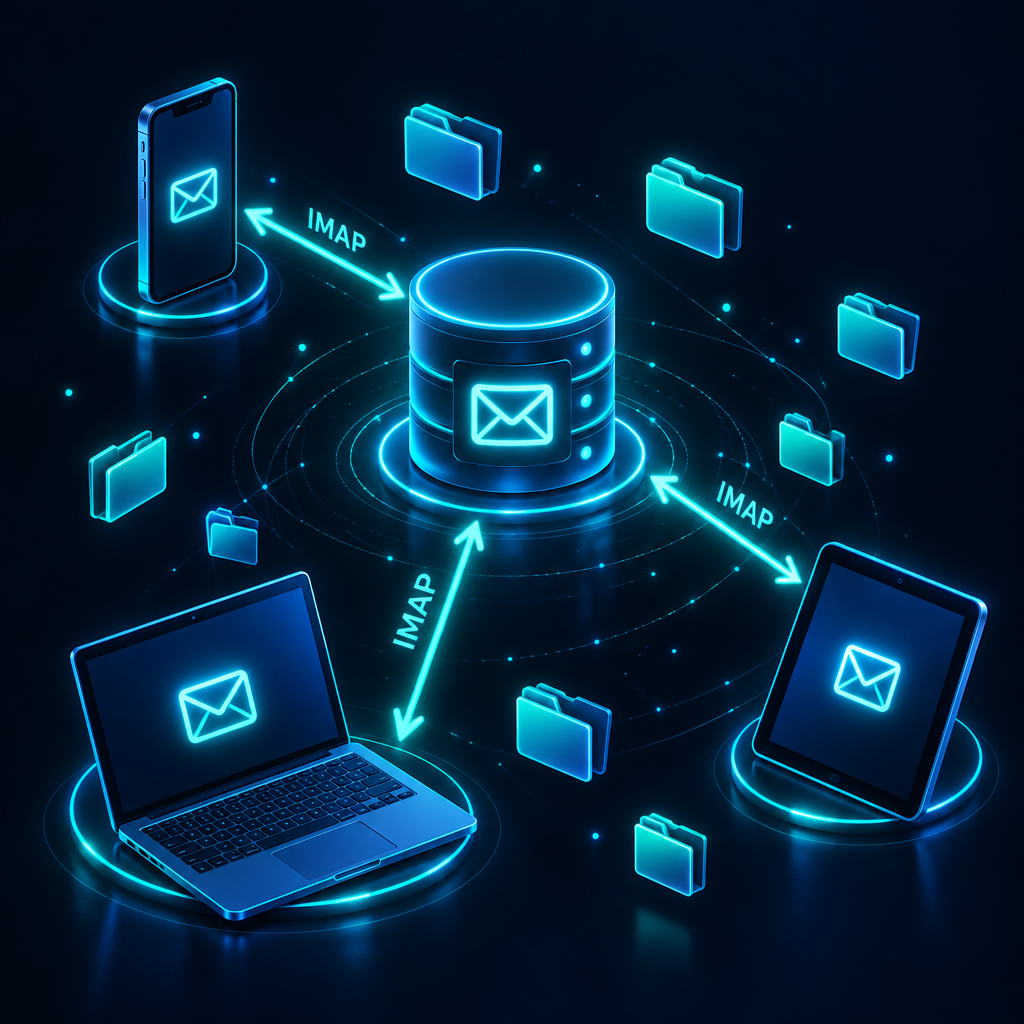
A Rovela business mailbox works in any IMAP-capable client. Here are the settings for Outlook, Foxmail, iPhone, Mac Mail, and Android, along with the four most common errors and what they mean.
What you'll need
Incoming server (IMAP)  mx.rovela.dev   port 993   SSL/TLS
Outgoing server (SMTP)  mx.rovela.dev   port 465   SSL/TLS
Username                full email address, e.g. zhang@yourcompany.com
Password                a credential created specifically for this device
The last item is the most common source of errors: the password is not your Rovela dashboard login password.
Step 1: create a credential for each device
In the Rovela dashboard, open Mailboxes, click Credentials for the mailbox you want to add, then New Credential. Give it a label — something like "iPhone" or "Office Outlook" — and copy the password that appears. It is only shown once. If you close the dialog without saving it, the credential is gone and you'll need to create a new one.
One credential per device matters for security. If a phone is lost, revoke that one credential and every other device continues working without any account password change. When someone leaves the team, an admin revokes all their credentials and every client is disconnected immediately.
Outlook (Windows / Mac)
- File → Add Account, enter the email address.
- Click Advanced Options and check "Let me set up my account manually."
- Choose IMAP as the account type.
- Incoming server:
mx.rovela.dev, port993, encryptionSSL/TLS. - Outgoing server:
mx.rovela.dev, port465, encryptionSSL/TLS. - Enter the credential password and finish.
Newer versions of Outlook sometimes try to redirect the setup to Exchange or Microsoft 365 login. Make sure you select IMAP manually.
Foxmail
- New Account, enter the email address and credential password.
- Click Manual Setup.
- Incoming server type: IMAP, server
mx.rovela.dev, port993, SSL checked. - SMTP server:
mx.rovela.dev, port465, SSL checked. - Click Create.
If Foxmail defaults to POP3, switch it to IMAP. POP3 downloads messages to the local device, which means your phone and webmail won't see read state or folders.
iPhone and iPad
- Settings → Mail → Accounts → Add Account → Other → Add Mail Account.
- Enter your name, email address, and credential password, then tap Next.
- Choose IMAP.
- Incoming mail server: host
mx.rovela.dev, username is the full email address. - Outgoing mail server: host
mx.rovela.dev, same username and password as incoming. - Save. iOS enables SSL automatically; to confirm the ports, go into the account → Advanced and check for 993 / 465.
Mac Mail
Mail → Add Account → Other Mail Account. The fields are the same as iPhone. If auto-detection fails, Mac Mail will ask you to enter the server details manually — use the values above.
Android
In the Gmail app or the built-in mail app, choose Add Account → Other, select Personal (IMAP) as the account type, and fill in the incoming and outgoing server settings from the table above.
Common errors
"Incorrect username or password": nine times out of ten this is the dashboard login password. Switch to the credential. Also confirm the username is the full email address, not just the local part.
"Can receive but can't send": check that the outgoing port is 465, the encryption is SSL/TLS, and "Outgoing server authentication" is enabled with the same username and password as incoming.
"Cannot connect to server" or timeout: double-check the server name is spelled correctly. If you're on a corporate network, the firewall may be blocking ports 993 and 465 — test on mobile data to confirm.
"Certificate not trusted": the server name must be exactly mx.rovela.dev. Using your own domain name (e.g. mail.yourcompany.com) will cause a certificate mismatch.
A few limits
- Maximum message size including attachments: 10 MiB.
- Incoming mail is scanned for spam and viruses. Suspected spam lands in the Junk folder, which is visible in your client like any other folder.
Prefer the browser?
Open mail.rovela.dev and sign in with your Rovela account. Every mailbox you have access to is there, including team shared mailboxes, with no local setup needed.
Further reading: Client setup reference, SMTP ports 25, 465, and 587, How to set up a domain email address.